.png?width=250&height=45&name=Refreshed%20Logo%20Blue%20(HQ).png)
Name and configure each wired input and output before adding it to the Standalone Alarm System.
Standalone Alarm System uses the input and output zones defined in your device firmware settings. Set up the wired zones first so that the app can offer the correct sensors and outputs when you configure alarm behavior.
Configure input and output zones
- Open the Konnected Mobile App and select your Alarm Panel.
- Tap Settings.
- Tap Zone Settings.
- Select an input zone, enter a clear name, and choose the sensor type that matches the device wired to that zone.
- Repeat for each door, window, motion sensor, or other input connected to the panel.
- Configure each siren, strobe, piezo buzzer, or other output you plan to use.
- Save the settings and apply the firmware update when prompted.
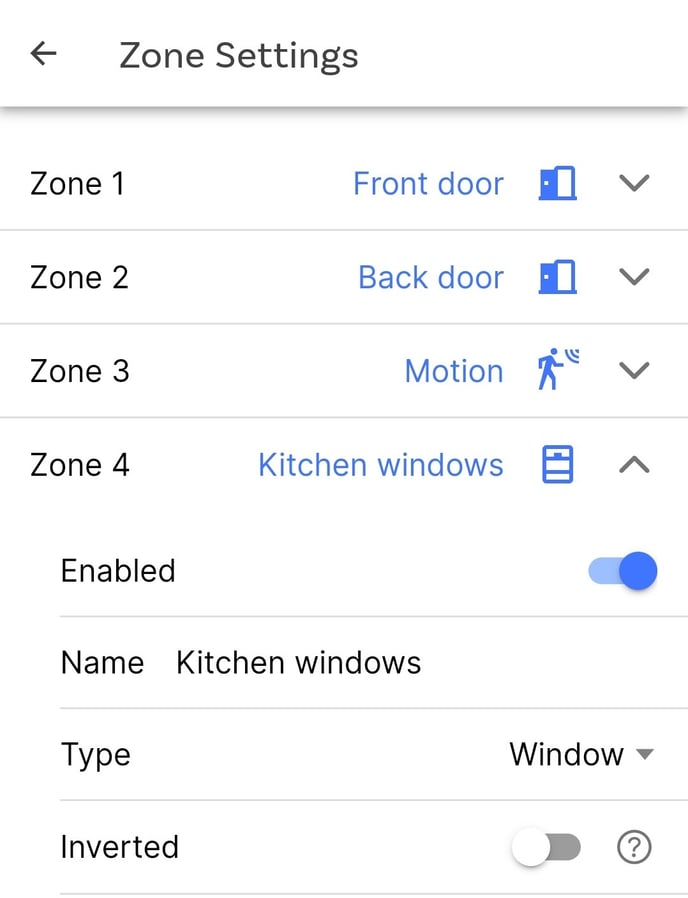
A zone-configuration change modifies the device firmware. Save and apply the new firmware build before you expect the new name, type, or behavior to appear on the panel or in your smart home platform.
Configure alarm outputs
A siren or strobe must first be configured as an output in Zone Settings before you can select it under Alarm Response.
For a typical siren connected to ALARM1 or ALARM2, configure that output as an On/Off switch. You can later choose whether the alarm response turns it on continuously, pulses it, or turns it off automatically after a set duration.
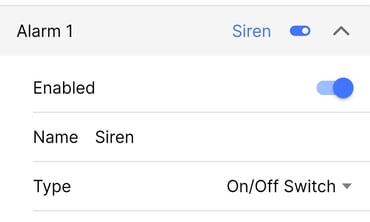
If you use a piezo buzzer for a warning or chime, configure it according to the output behavior you need. An output configured as a button, or a multi-output pattern with a repeat value, may not appear in a warning-output list that requires an on/off switch.
Enable Standalone Alarm System
- Return to the device's main Settings screen.
- Tap Standalone Alarm System.
- Turn on Enabled.
- Enter a name for the alarm system. If you leave the name blank, it appears as Konnected Alarm.
- Continue to the Zones/Sensors section to choose which inputs the alarm will monitor.
The alarm name appears in supported smart home platforms and is also the name you use in Alexa voice requests. Choose a short, distinct name that is easy to recognize and say.
Next Step: Monitor zones with Standalone Alarm Panel